
Descripción del producto
Este producto contiene contenido generado por IA.
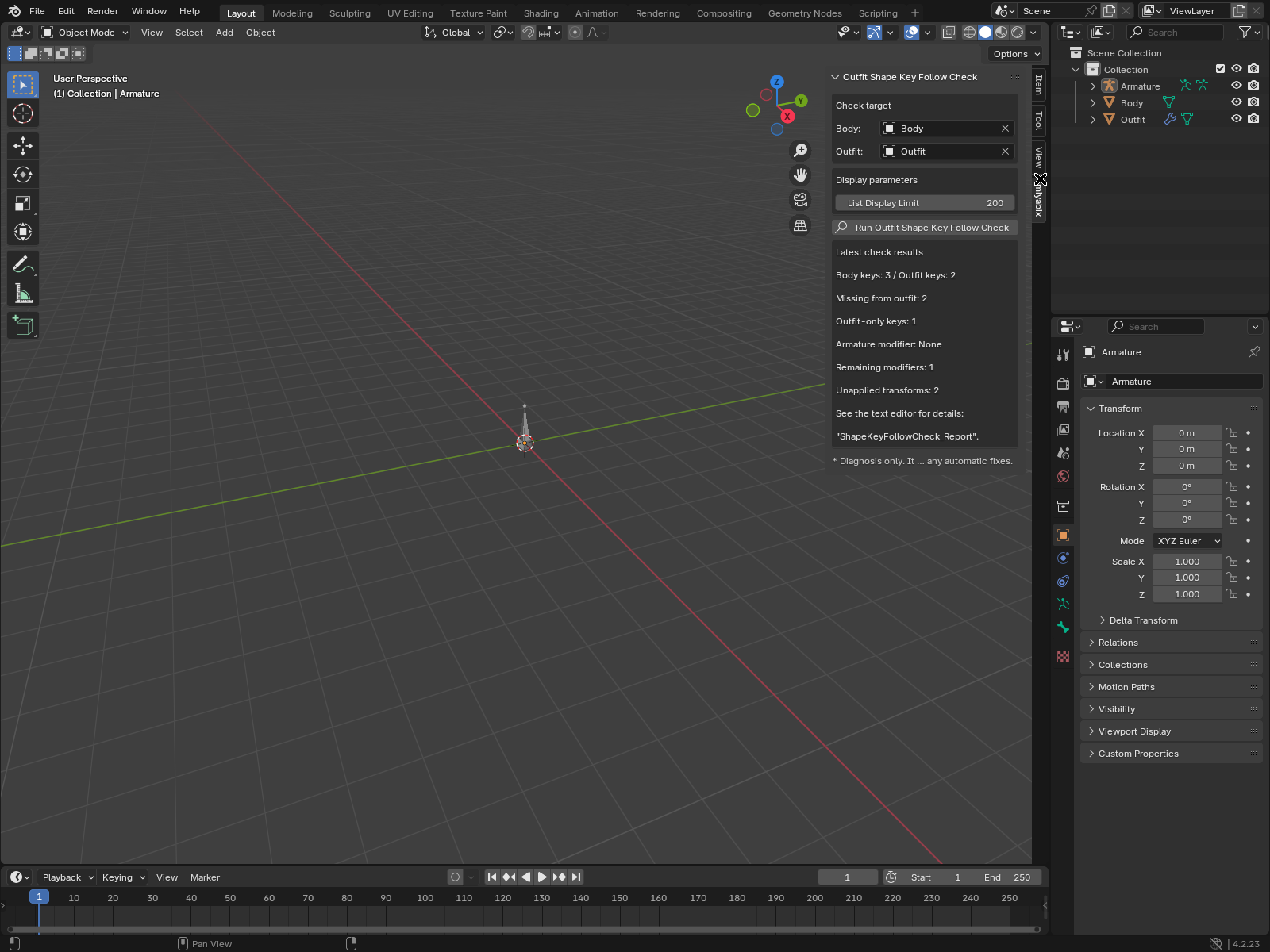
You transfer the shape keys to the outfit — and the body moves, but the outfit doesn't. Or the outfit moves in the wrong place. The cause is often not the transfer itself. Before the transfer, the body's keys and the outfit's keys were never matching. Outfit Shape Key Follow Checker lists the mismatch between the body and the outfit BEFORE you transfer — so you can see what is missing. Check. Read the list. Fix the keys before you transfer. What it checks 1. Shape keys on the body but missing on the outfit (excluding Basis). 2. Shape keys only on the outfit (for cleaning up naming mistakes and spelling differences). 3. Transfer prerequisites: does the outfit mesh have an Armature modifier / remaining modifiers such as Mirror / unapplied transforms (scale, rotation). Results are written to the "ShapeKeyFollowCheck_Report" text block. How to use Set the Body (base body) and the Outfit (outfit mesh). Adjust the parameter if needed: List Display Limit. Press "Run Outfit Shape Key Follow Check". Read the report in the "ShapeKeyFollowCheck_Report" text block (open it in the Text Editor). Notes and limitations - Body and outfit shape keys must match in name and count. The add-on does not judge how far each shape key moves (its influence). - It only compares data within the Blender scene (shape keys, modifiers, transforms). It does not inspect the actual exported file, so the exported result may differ depending on the export / import settings and conditions. - When a shape key exists on both sides, the add-on does not check whether the value is 0 or 1. The transfer target is determined by the key names. - Transferring from one body to multiple outfits in one operation is not supported. Run it once per outfit. - Other add-ons / exporters / settings may add, ignore, or rename shape keys. If the result looks odd, inspect the shape key list inside Blender first, then check the export settings and the destination application's import settings. - Some shape keys are for the body itself (for example, body physics). "Missing" in the report does not always mean a problem — read it as a list of differences and judge each one. - It checks the mismatch between the body and the outfit. It does not rewrite your shape keys, and does not fix them. Installation Start Blender 4.2 or 5.3, open Edit > Preferences > Add-ons. Install the .py file via Preferences > Add-ons > Install... and select the .py file, then enable the addon by checking its checkbox. A "miyabix" tab is added to the 3D Viewport sidebar (N key). System requirements Blender 4.2 or 5.3 (Windows / macOS / Linux — any environment where Blender runs) Files included outfit_shapekey_follow.py — the addon README.txt — full English instructions Refund policy For defects such as the addon failing to start, please contact the shop within 5 days of purchase with a detailed description of your operating conditions (Blender version, object structure, error messages, etc.). We will review the details and respond. Refunds cannot be accepted for requests outside the scope of use, or for behavior that matches the specifications.