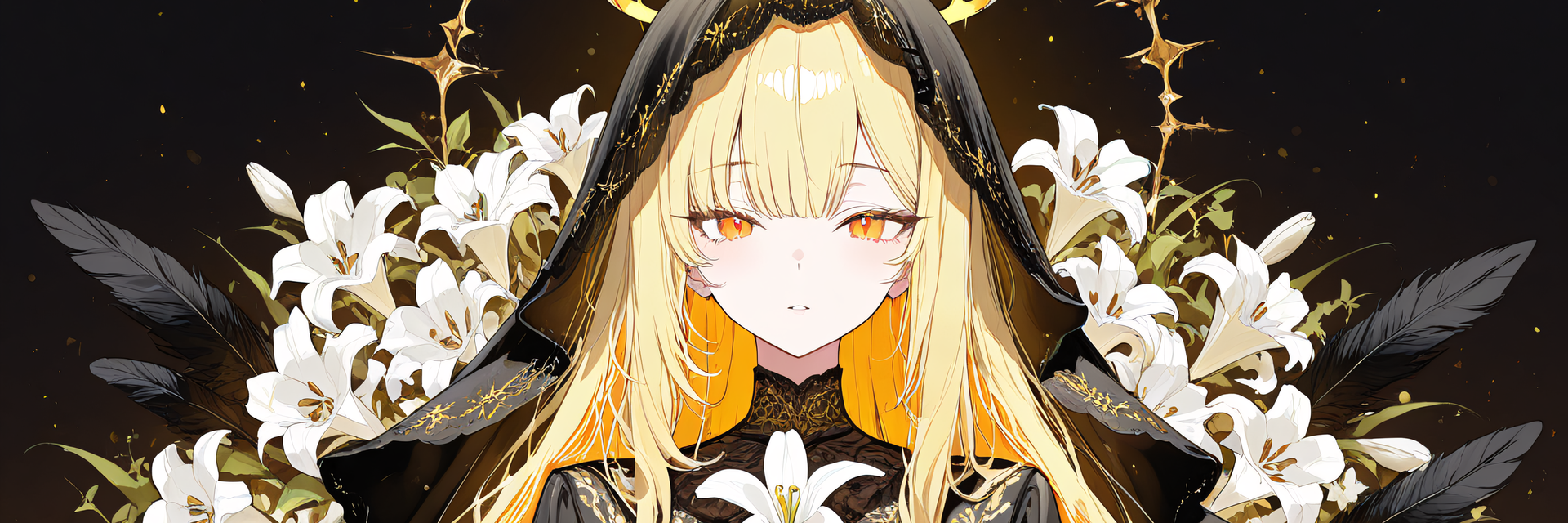
![Spiral Horns — Glowing Horn Accessory with 4 Relief Styles + Custom Colors [VRChat/MA]](https://jinxxy-c.jinxxy-cdn.com/cdn-cgi/image/format=auto,onerror=redirect/84edb18f-0105-522b-ba9d-12ecceee5112/4015346657402029123/1034256873859763200.png)
![Spiral Horns — Glowing Horn Accessory with 4 Relief Styles + Custom Colors [VRChat/MA]](https://jinxxy-c.jinxxy-cdn.com/cdn-cgi/image/format=auto,onerror=redirect/84edb18f-0105-522b-ba9d-12ecceee5112/4015346657402029123/1034256914319435776.png)
![Spiral Horns — Glowing Horn Accessory with 4 Relief Styles + Custom Colors [VRChat/MA]](https://jinxxy-c.jinxxy-cdn.com/cdn-cgi/image/format=auto,onerror=redirect/84edb18f-0105-522b-ba9d-12ecceee5112/4015346657402029123/1034256919720423424.png)
![Spiral Horns — Glowing Horn Accessory with 4 Relief Styles + Custom Colors [VRChat/MA]](https://jinxxy-c.jinxxy-cdn.com/cdn-cgi/image/format=auto,onerror=redirect/84edb18f-0105-522b-ba9d-12ecceee5112/4015346657402029123/1034256929793557504.png)
![Spiral Horns — Glowing Horn Accessory with 4 Relief Styles + Custom Colors [VRChat/MA]](https://jinxxy-c.jinxxy-cdn.com/cdn-cgi/image/format=auto,onerror=redirect/84edb18f-0105-522b-ba9d-12ecceee5112/4015346657402029123/1034256935850541056.png)
![Spiral Horns — Glowing Horn Accessory with 4 Relief Styles + Custom Colors [VRChat/MA]](https://jinxxy-c.jinxxy-cdn.com/cdn-cgi/image/format=auto,onerror=redirect/84edb18f-0105-522b-ba9d-12ecceee5112/4015346657402029123/1034256945879531520.png)
![Spiral Horns — Glowing Horn Accessory with 4 Relief Styles + Custom Colors [VRChat/MA]](https://jinxxy-c.jinxxy-cdn.com/cdn-cgi/image/format=auto,onerror=redirect/84edb18f-0105-522b-ba9d-12ecceee5112/4015346657402029123/1034256990264785920.png)
![Spiral Horns — Glowing Horn Accessory with 4 Relief Styles + Custom Colors [VRChat/MA]](https://jinxxy-c.jinxxy-cdn.com/cdn-cgi/image/format=auto,onerror=redirect/84edb18f-0105-522b-ba9d-12ecceee5112/4015346657402029123/1034256997889168384.png)
![Spiral Horns — Glowing Horn Accessory with 4 Relief Styles + Custom Colors [VRChat/MA]](https://jinxxy-c.jinxxy-cdn.com/cdn-cgi/image/format=auto,onerror=redirect/84edb18f-0105-522b-ba9d-12ecceee5112/4015346657402029123/1034257005000830976.png)
![Spiral Horns — Glowing Horn Accessory with 4 Relief Styles + Custom Colors [VRChat/MA]](https://jinxxy-c.jinxxy-cdn.com/cdn-cgi/image/format=auto,onerror=redirect/84edb18f-0105-522b-ba9d-12ecceee5112/4015346657402029123/1034257012640330752.png)
![Spiral Horns — Glowing Horn Accessory with 4 Relief Styles + Custom Colors [VRChat/MA]](https://jinxxy-c.jinxxy-cdn.com/cdn-cgi/image/format=auto,onerror=redirect/84edb18f-0105-522b-ba9d-12ecceee5112/4015346657402029123/1034257018558960640.png)
![Spiral Horns — Glowing Horn Accessory with 4 Relief Styles + Custom Colors [VRChat/MA]](https://jinxxy-c.jinxxy-cdn.com/cdn-cgi/image/format=auto,onerror=redirect/84edb18f-0105-522b-ba9d-12ecceee5112/4015346657402029123/1034257062986655744.png)
Spiral Horns — Glowing Horn Accessory with 4 Relief Styles + Custom Colors [VRChat/MA]
Etiquetas
Descripción del producto
Este producto contiene contenido generado por IA.
A pair of large, ram-like spiral horns with a glowing tip (VRChat / Modular Avatar). In-game, the Action Menu turns the glow on/off and shows both / left only / right only.
To change colors or the relief, the free "ys-room Color Tool" (for ys-room products only) is needed. Without it, the product works as-is with its default colors and default relief.
ys-room Color Tool (free): https://jinxxy.com/Ys_room/8xXmh
Standard and Supporter versions
There are two versions: Standard and Supporter. The Supporter version has exactly the same contents. Choose it if you would like to support our future work.
Note: The character (avatar) shown in the product images is not included.
[Product] Spiral Horns
A horn-style head accessory for VRChat: a pair of large, ram-like spiral horns growing from the temples. The tip side of the horns glows from within.
The glow is on by default and can be turned on/off with "Glow" in the in-game menu. The glow color and brightness, the 4 root reliefs (Rock / Growth rings / Vertical ridges / Scales) and the colors are set with the free ys-room Color Tool (an editor tool for Unity, separate download); what you choose is fixed and does not switch in game.
It supports Modular Avatar: just drop the prefab under your avatar and it attaches to the head.
What it does
- Glow (on by default): the tip side of the horns (about the outer half) glows from within, getting stronger toward the tip (default: amber). Turn it on/off with "Glow" in the in-game menu; the setting is saved and synced to other players
The glow is static (no blinking or flowing). How the glow blooms depends on each world's settings
It glows in the default color even without the tool, and the glowing area is the same for all 4 reliefs - Show (pick one in the menu "Show"; default Both): Both / Left only / Right only
- 4 reliefs (pick one in the ys-room Color Tool window; default Rock; not switchable from the in-game menu): the root that shows outside the hair changes in shape and surface (the horn tip is the same for all)
Rock: rugged rock with cracks and chips
Growth rings: horizontal knots and vertical wrinkles, like a ram's horn
Vertical ridges: vertical chamfered ridges and grooves
Scales: hard scales overlapping in a staggered pattern, like reptile skin
(besides the normal map, the outline of the root also shifts by a few mm. The triangle count does not increase) - Colors (set with the ys-room Color Tool): root sleeve / lower horn / horn tip / tip glow (color and brightness), with a color picker or color code. 5 recommended color sets: Glowing tip (default) / Like the original art / Gem (amber) / Metal / mineral / Bone / horn (Bone / horn has no glow)
Choosing colors changes only colors (gloss does not change). Relief and colors are chosen separately - A symmetric pair. Position and size defaults are the values decided on our mascot avatar
- The shape does not move (no transformation or sway)
Changing relief and colors (free ys-room Color Tool, separate download)
- To change the relief and colors, add the free "ys-room Color Tool" (for ys-room products only, Color Tool 1.0.0 or later). It is NOT included in this product. Without it, the product works as-is with the default colors (amber glow) and the default relief (Rock)
- Open the menu "ys-room > Color Tool", select the horns (or the avatar), press one of the 4 reliefs in the top row, then press a recommended color set or choose your own colors. The Scene updates right away (no need to press Play)
- After you set the glow color/brightness with the tool, the in-game "Glow" toggle still turns it on/off (when on, it glows in the color you set)
- The window shown in the product image "Change Relief and Colors" is an illustration with the ys-room Color Tool installed
- ys-room Color Tool (free): https://jinxxy.com/Ys_room/8xXmh
How the reliefs look (checked by rendering in Unity)
- The relief is mostly a normal map, so the 4 reliefs are clearly different when seen up close with light from the side
- From a distance (front-side view) the differences get small. Under weak light or frontal light the relief is hard to see (in dark worlds the glow and the shape stand out more than the relief)
- Of the 4, "Growth rings" and "Vertical ridges" look more alike than the other two
Quick start
- Add Modular Avatar and lilToon to your project in VCC, then import the included unitypackage
- Drag YsSpiralHorn.prefab onto your avatar's name in the Hierarchy (it should end up one level under the avatar). In the Scene view the horns appear near the feet; they attach to the head on build / play
- (Optional) To change the relief and colors, add the ys-room Color Tool and follow the steps above
- Check with Build & Test, then upload. "Spiral Horn" is added to your Action Menu (Show and Glow; the menu is labeled in Japanese: らせんの角 > 表示 / 発光)
- To remove it, just delete YsSpiralHorn from the Hierarchy
Menu
Spiral Horn (らせんの角) > Show (表示: Both / Left only / Right only) / Glow (発光: on/off, on by default)
- There are no "relief" or "color" items in the menu (both are set with the tool in Unity; what you set looks the same to other players)
- Synced parameters: 1 Int (Show) and 1 Bool (Glow), 9 bits in total. A warning appears if your avatar has no room for parameters
- 2 layers are added to FX (Show, Glow; Write Defaults off)
- "Glow" only turns the glow strength on/off and never changes the color (colors set with the tool stay)
Verification (what was checked on a real VRChat client and what was not)
[Checked on a real VRChat client] None. It has not been tested on a real VRChat client yet.
[Checked inside Unity] The included unitypackage was imported into a clean project like yours (only VRChat SDK, Modular Avatar and lilToon) and these were checked:
- Imported without the tool (16 passed / 0 failed): 0 compile errors / imports without the color tool / the prefab loads / no missing texture references and all prefab dependencies exist / no .cs or .dll inside / the default glow color is in the material / 0 errors, warnings and info in NDMF (the Modular Avatar build preprocessing)
- Glow (all passed: 23 checks without the tool, 23 with the tool): FX layers and transitions, Write Defaults off / "Glow" sits next to "Show" in the menu / on the avatar baked by the same preprocessing as a VRChat build, sync is 9 bits and the menu is as expected / we ran the baked FX and photographed the horn tip: glow ON is about 6x as bright as OFF (the glow disappears when OFF) / with a recolored material the toggle still works and the color is kept
- After adding ys-room Color Tool 1.0.0 (24 passed / 0 failed): the tool finds the placed horns / the 5 recommended color sets read back as expected (40/40 values) / choosing each of the 4 reliefs sets the material and blendshapes as expected / custom colors are saved and read back / NDMF 0 on a recolored avatar / "Restore original" works
- Face orientation of the horn models: both face outward (outward ratio 1.000, machine check), 0.997-1.000 for each of the 4 relief shapes, 1.000 for the glowing faces. The direction of the relief (raised vs. sunken: shape motion vs. brightness structure, and the normal map orientation) was checked by numbers too
- We rendered the horns on our mascot in Unity from the back, back-diagonal and both sides for each of the 4 reliefs, with back faces not drawn (the product material as-is), and checked by eye that no holes or missing parts appear
- Versions checked (others untested): Unity 2022.3.22f1 / VRChat SDK Avatars 3.10.4 / Modular Avatar 1.18.7 / lilToon 2.3.4
[Not checked]
- The look on a real VRChat client (glow brightness, bloom), the menu feel, and other players' screens (sync, the chosen relief shape)
- The horn position on your own avatar (interference with hair and head shape; adjustable), and how the root edge looks on avatars other than our mascot
- The look and mouse interaction of the ys-room Color Tool window in the Unity GUI (the logic itself was tested)
- Quest / Android (not supported)
Requirements
- Unity 2022.3 series / VRChat SDK Avatars 3.10 or later / Modular Avatar 1.18 or later / lilToon 2.3 or later
- Only to change relief / colors: ys-room Color Tool 1.0.0 or later (free, separate download)
- PC only (not supported on Quest / Android). A Humanoid avatar set up for VRChat is required
Performance (the horn prefab alone, VRChat SDK stats in Unity, PC)
Triangles 11,360 (5,680 per side) / skinned meshes 2 (no bones) / material slots 2 (one per side; 1 material) / particles 0 / lights 0 / PhysBone, Contact, Audio Source 0 / synced parameters 9 bits / FX layers 2
- PC rank: Good overall for the horn prefab alone
- Textures: 30.7 MB (Unity storage size with compression and mips; 6 textures). The 4 reliefs are packed in one texture, so more relief types do not add memory
- * Mind the total on your avatar: on our mascot (no horns: 50,928 triangles, Poor) the total becomes 62,288 triangles (polygons stay Good), and the overall rank stays Poor because the mascot itself is Poor. On an avatar that already has many triangles, the overall rank can drop (VeryPoor above 70,000 polygons)
- Not measured on a real VRChat client
Included
- ys_spiral_horn.unitypackage (horn prefab, model, material, normal map, emission map, FX, menu [Show, Glow], relief and color settings). The color tool is NOT included
- Readme_JP.txt / Readme_EN.txt, License_JP.txt / License_EN.txt, Changelog_JP.txt / Changelog_EN.txt
Notes
- Do NOT place two sets of horns on one avatar (they would overlap). This product goes into its own folder, separate from our other horns and crowns
- The default position fits our showcase character. On other avatars the horns may float or sink, and depending on the hairstyle the root edge may show above the hair or hide in it (adjust Adjust / Horn_L / Horn_R: Position / Rotation / Scale in the prefab)
- Relief and colors can be changed only in Unity (not from the in-game menu). Gloss does not change with color
- The SDK Build panel may show a "Write Defaults mixed" warning on avatars with 2 FX layers (caused by the MMD layer that Modular Avatar adds; it does not appear on avatars with 3 or more FX layers). The layers of this product use Write Defaults off
How it was made
- The horn shape was refined by us with our own programs, based on a solid made with generative AI (3D generation). The textures for relief, color and glow (brightness structure, normals, masks, emission map) were created by us with programs
Terms of use (summary)
- Adjusting color, size and position, and modifying, are allowed / you may build it into your own avatar and upload it to VRChat
- Redistribution is prohibited (as-is or modified; including distributing or selling it inside avatar data)
- See the included "License_EN.txt"
Changelog
- 2026-10-25: first release (glowing tip [on/off in the in-game menu], 4 reliefs and colors chosen with the free ys-room Color Tool, Show switch in the Action Menu [left / right display])