
Alos - VRChat Women's Clothing / CP54
Etiquetas
Descripción del producto
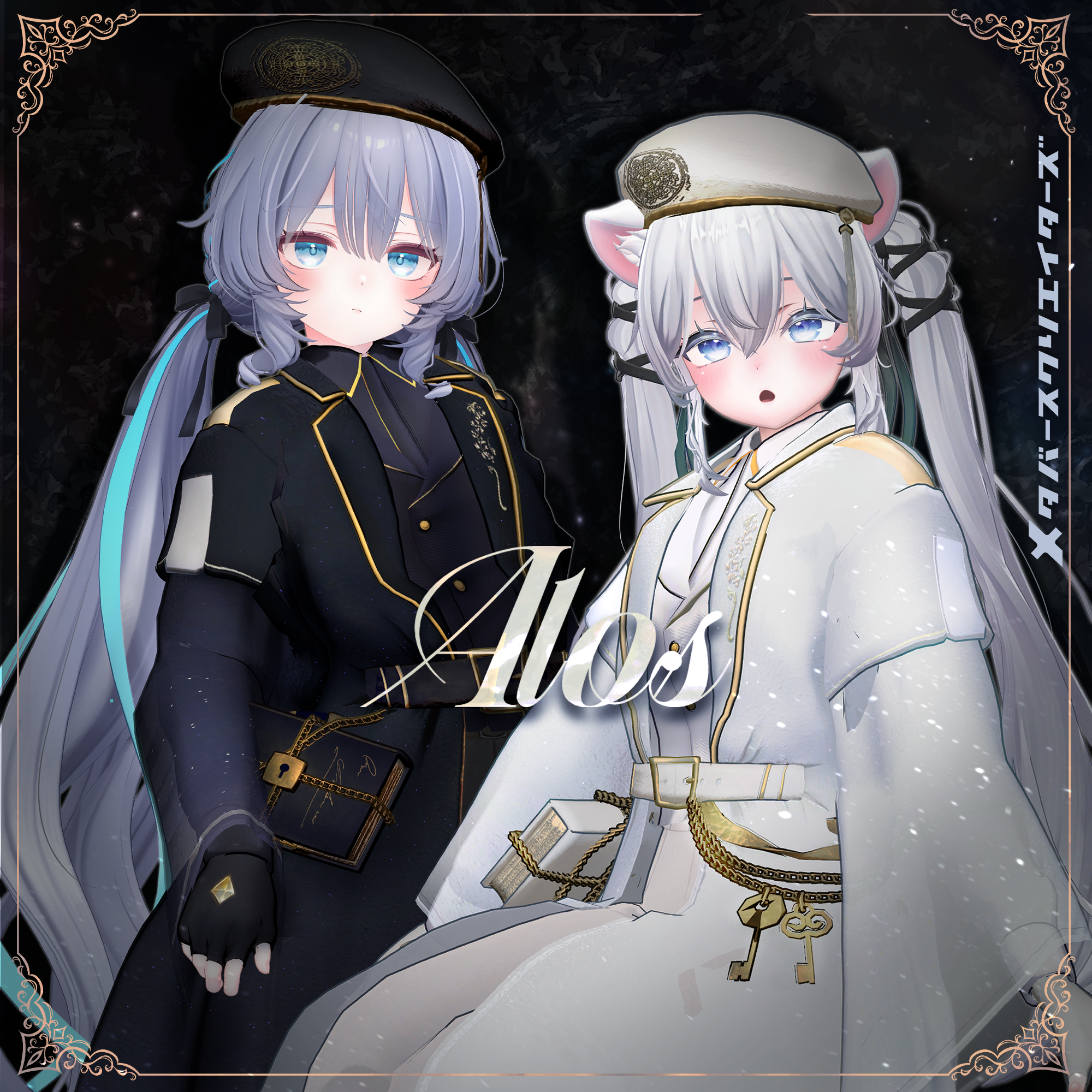
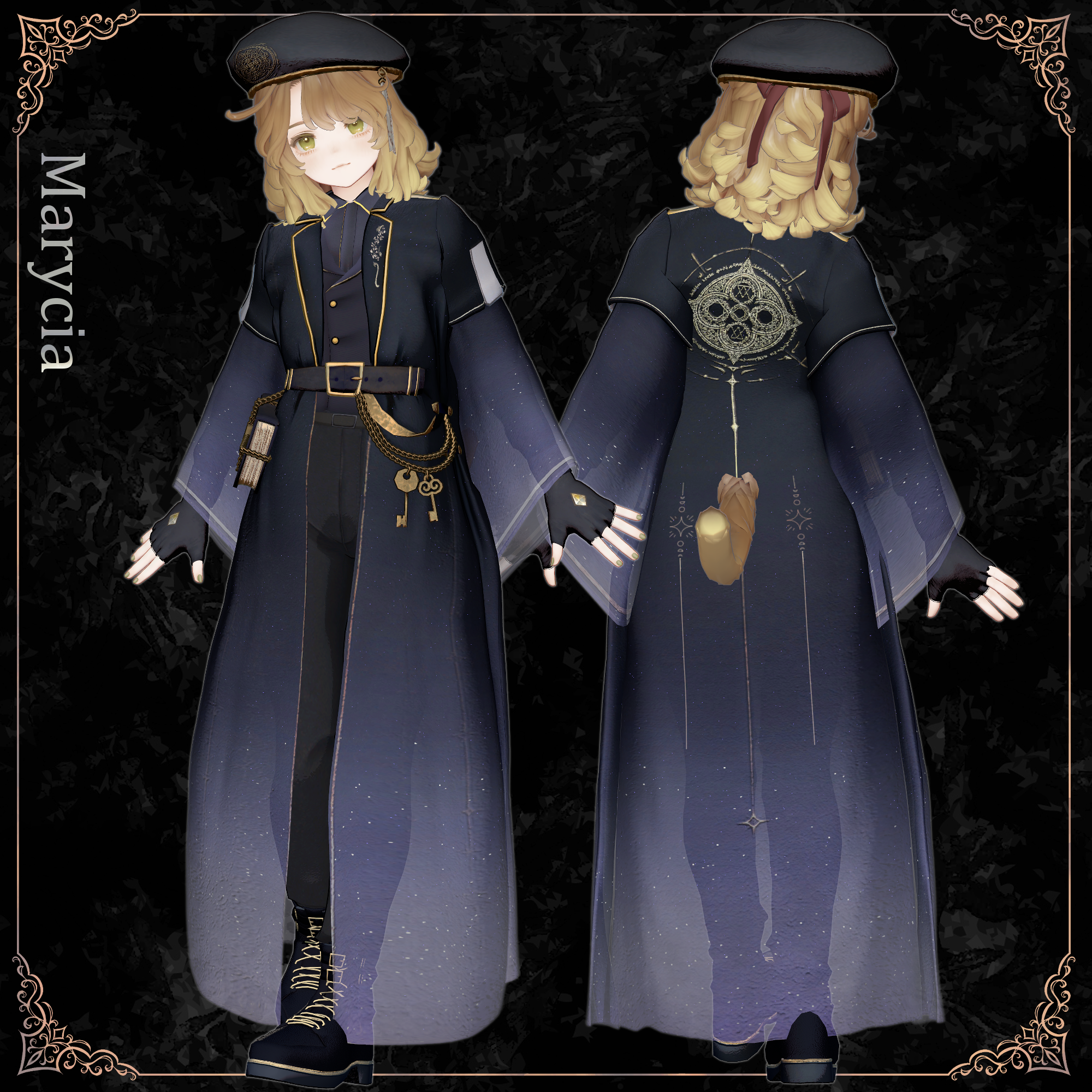
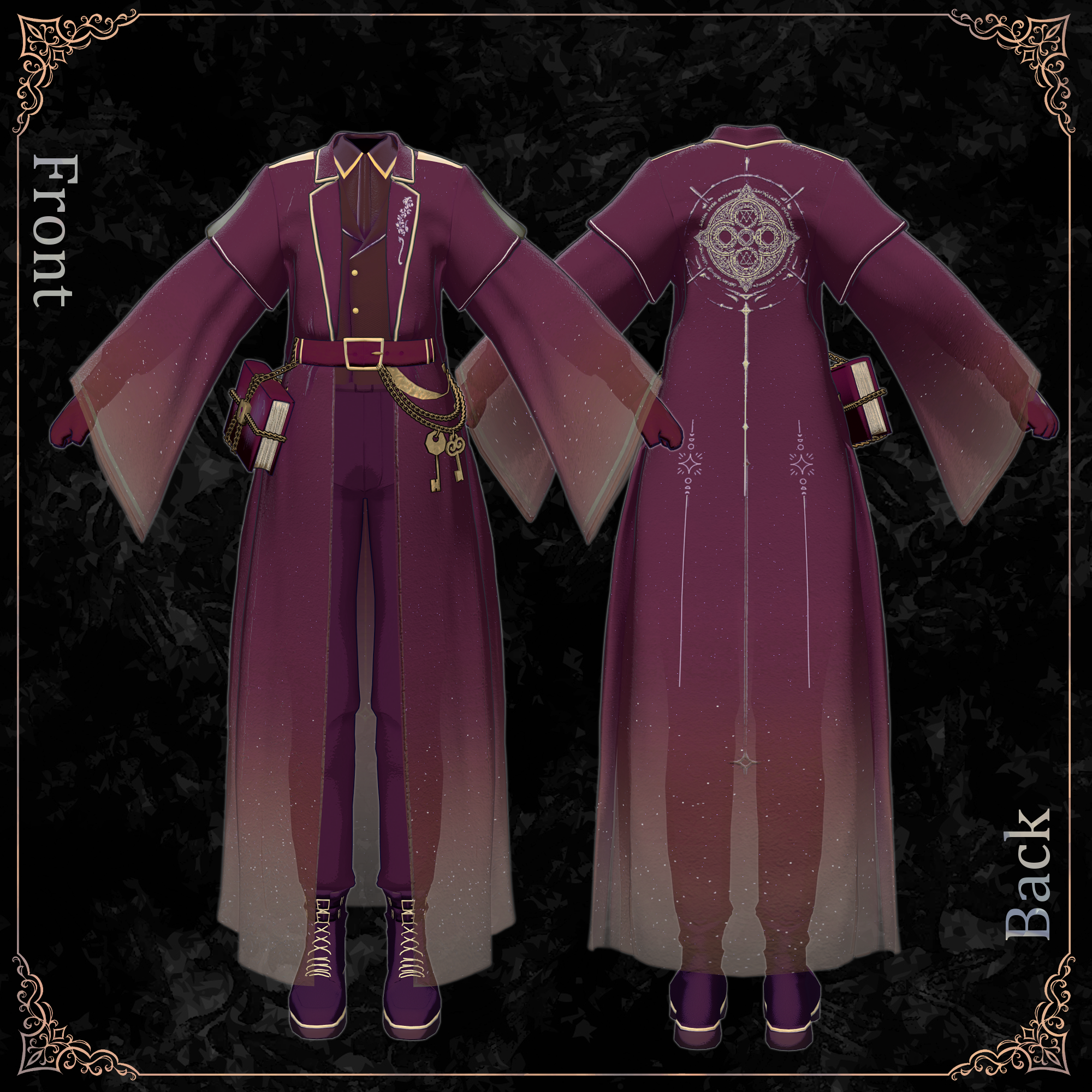
A quiet presence concealing mysterious magical powers.
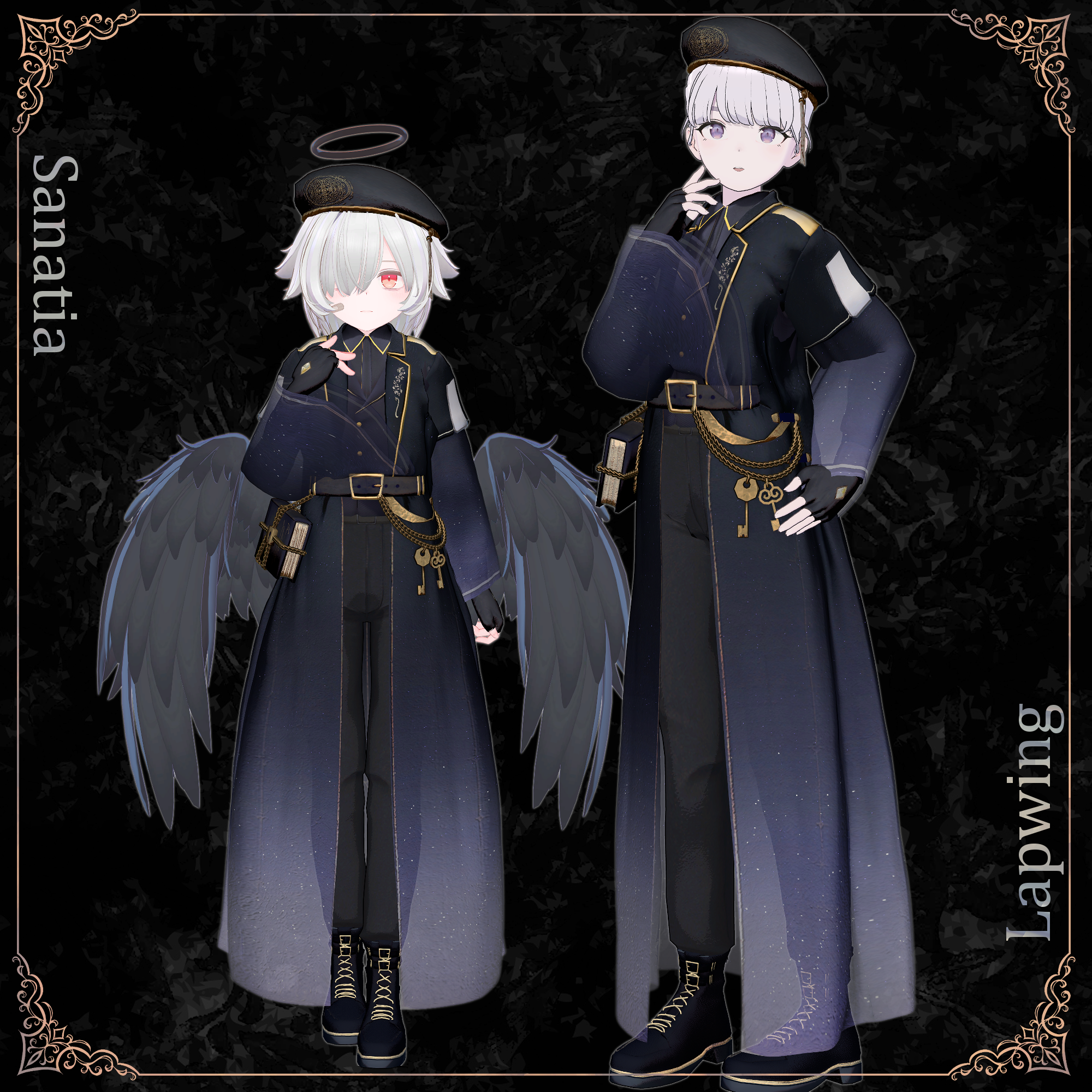
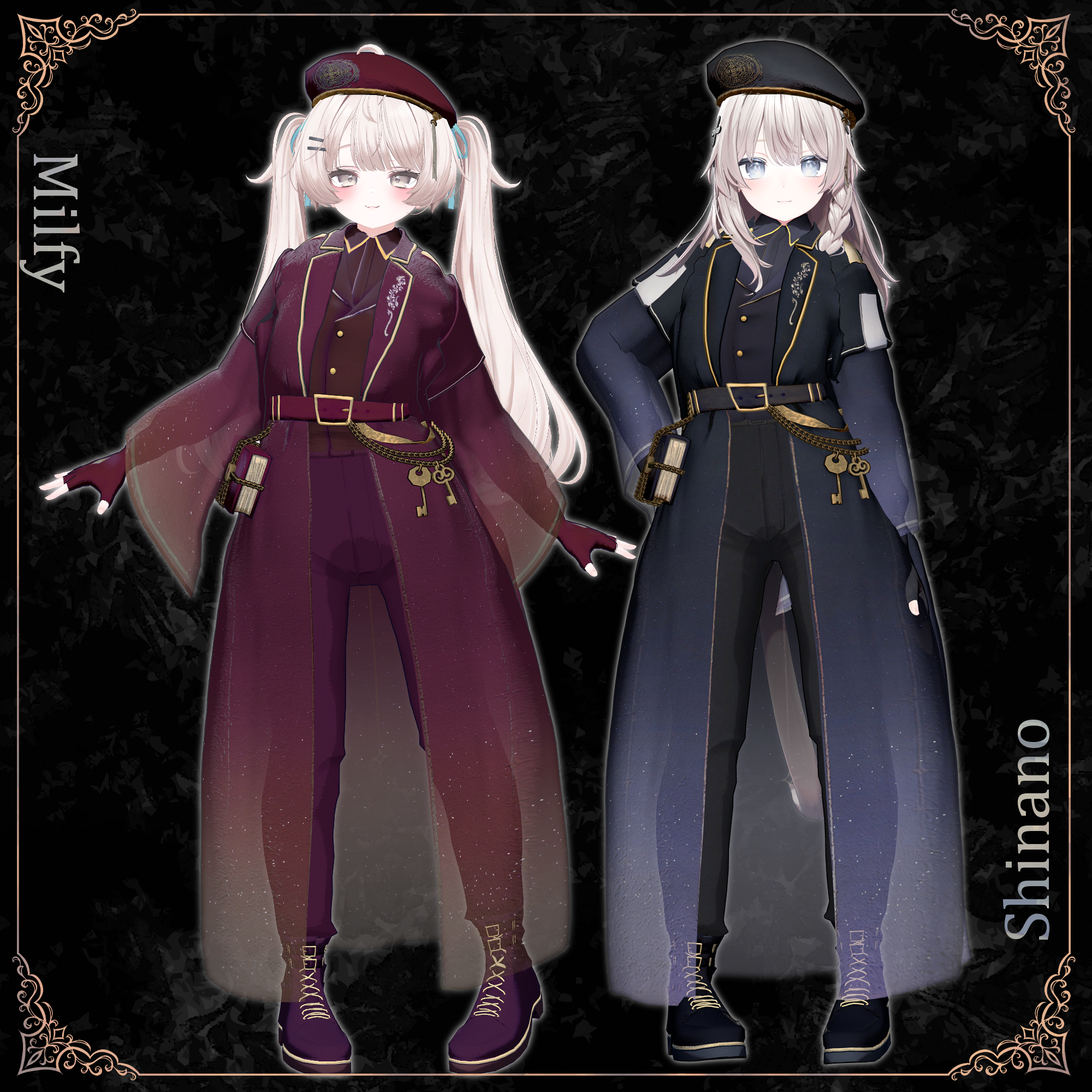
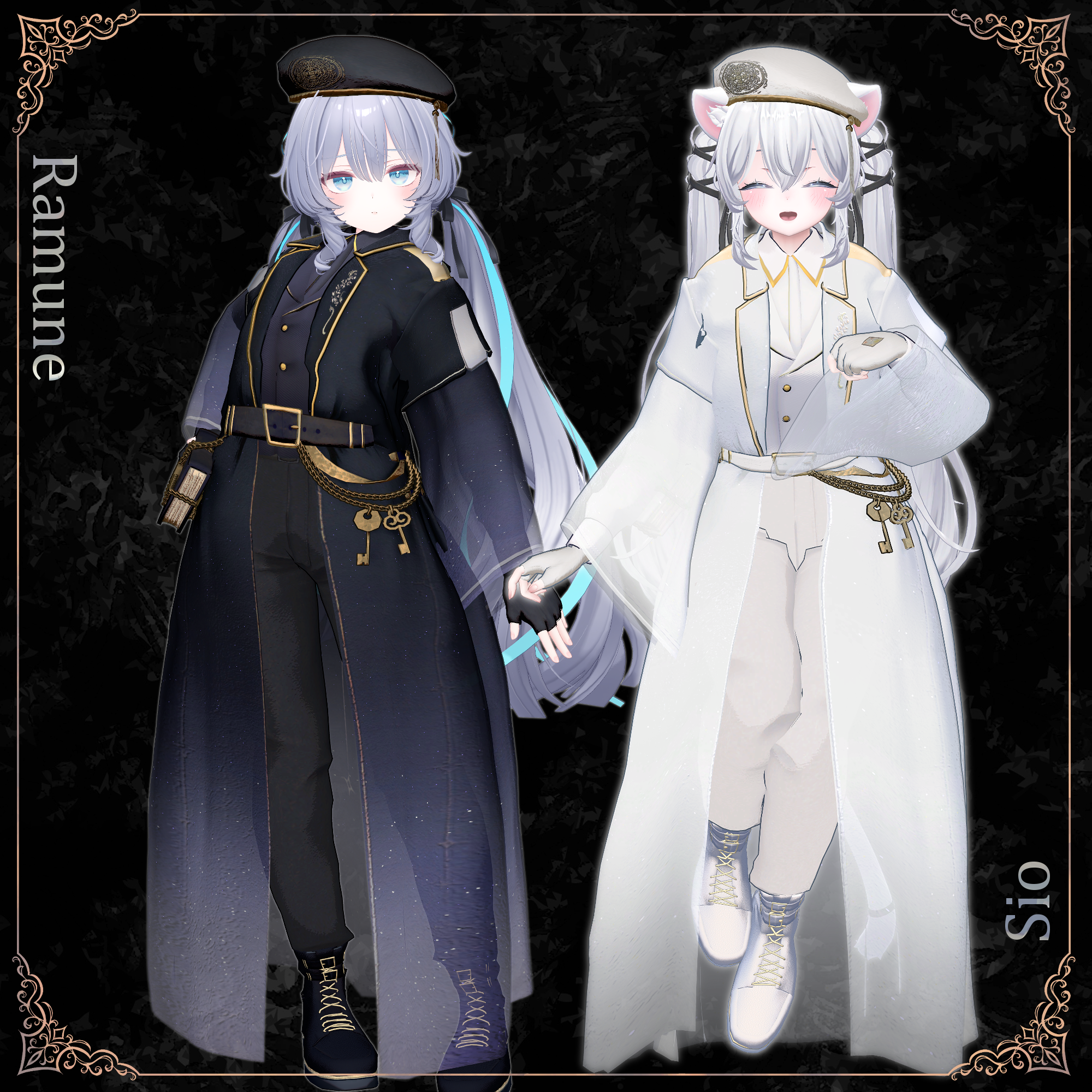
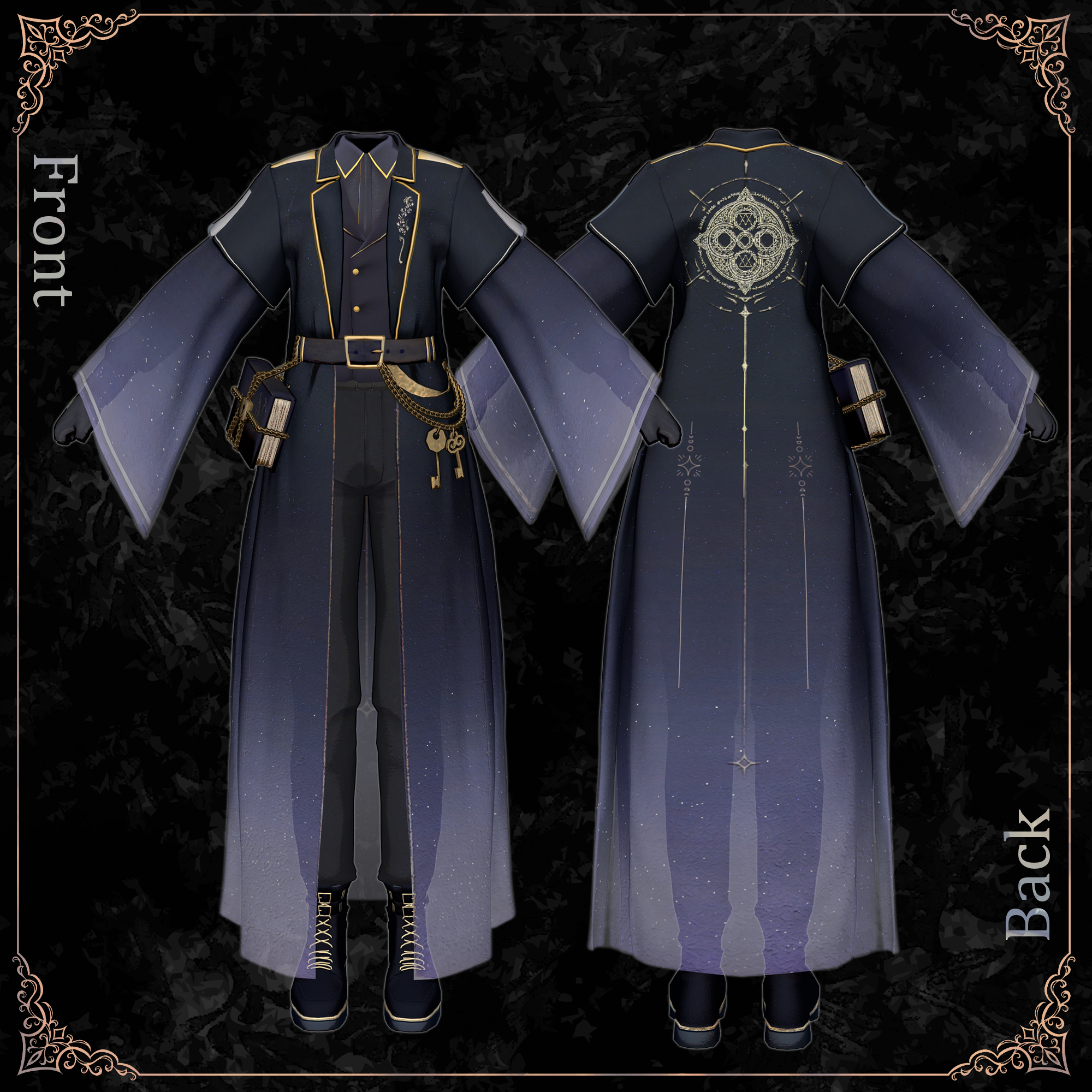
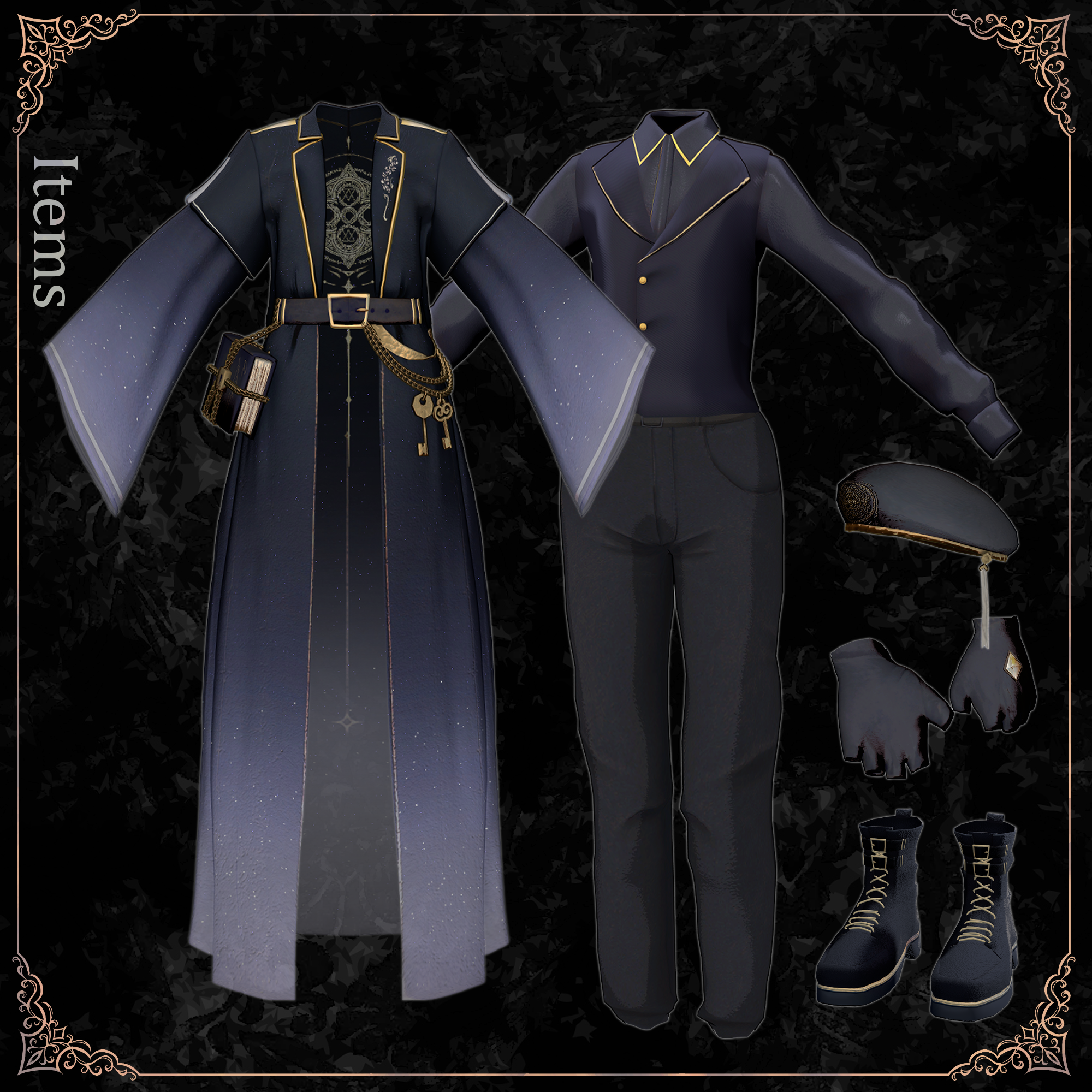
With flowing sleeves and a long silhouette, this elegant outfit evokes the graceful appearance of a powerful mage. Gold ornaments, delicate chains, and key motifs add an air of mystery and enchantment.
A male avatar version is also available! ✨
Supported Male Avatars: Shizune, Shidou, Kuuta, Kirisame, Komano, and Arue
https://metacreatorstyo.booth.pm/items/8868694
◆ Please Note
Excessive leg lifting or wide sideways splits may cause clipping through the jacket.
Render Queue (RQ): 2460. If hair or other objects disappear, adjust their render settings.
This product is a clothing model only. Avatars are not included.
All purchases are final and non-refundable. Please read the product description and Terms of Use before purchasing.
◆ Product Details
Included Files
○Avatar Name○_Alos.Unitypackage
Alos_Material.Unitypackage
ReadMe.txt
Required Assets
Shader: lilToon
Modular Avatar
Model Specifications
Total Polygons: 77,660
Top: 12,052
Shoes: 9,974
Pants: 2,454
Jacket: 46,172
Gloves: 2,928
Hat: 864
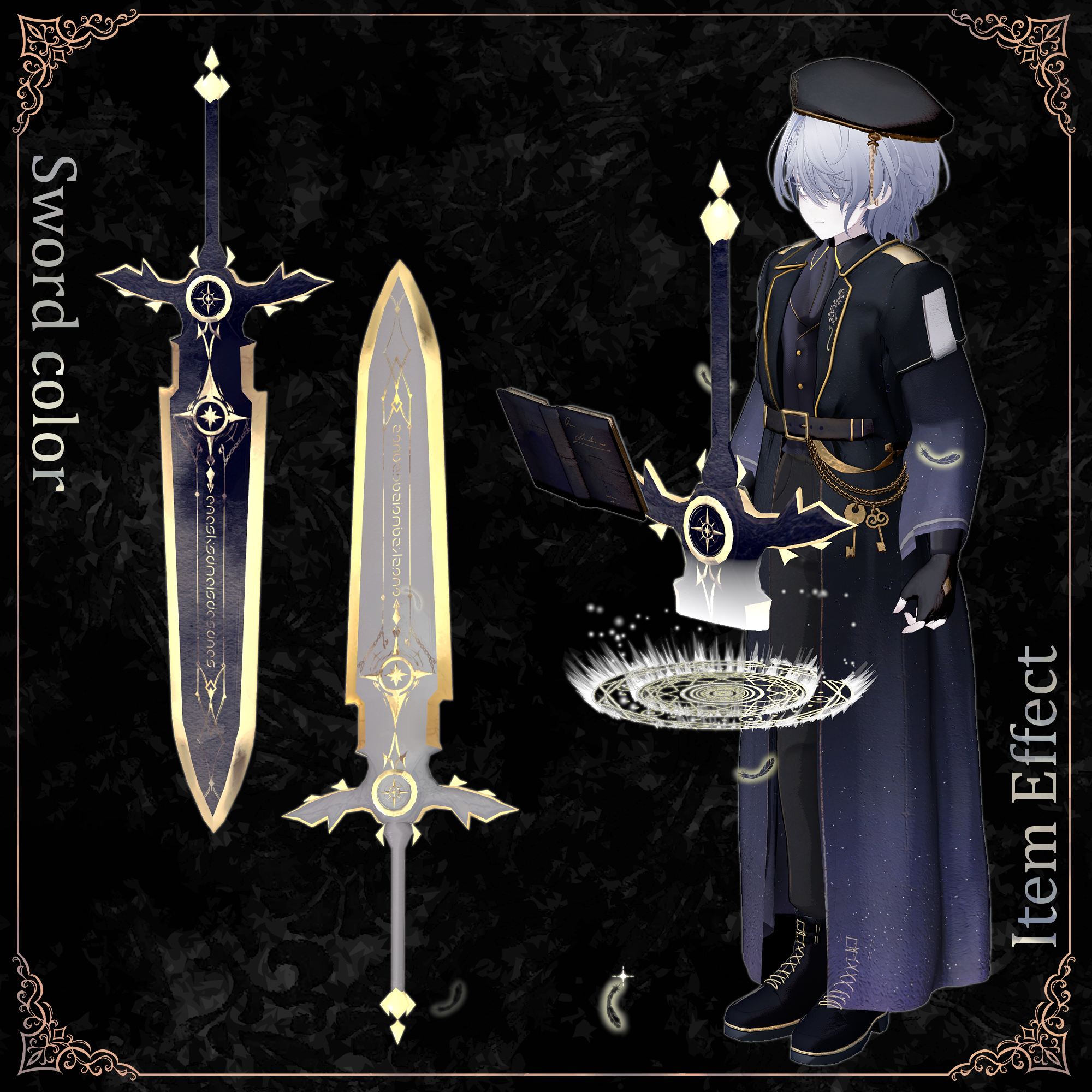
Sword: 1,580
Key: 400
Book: 1,236
Meshes: 9
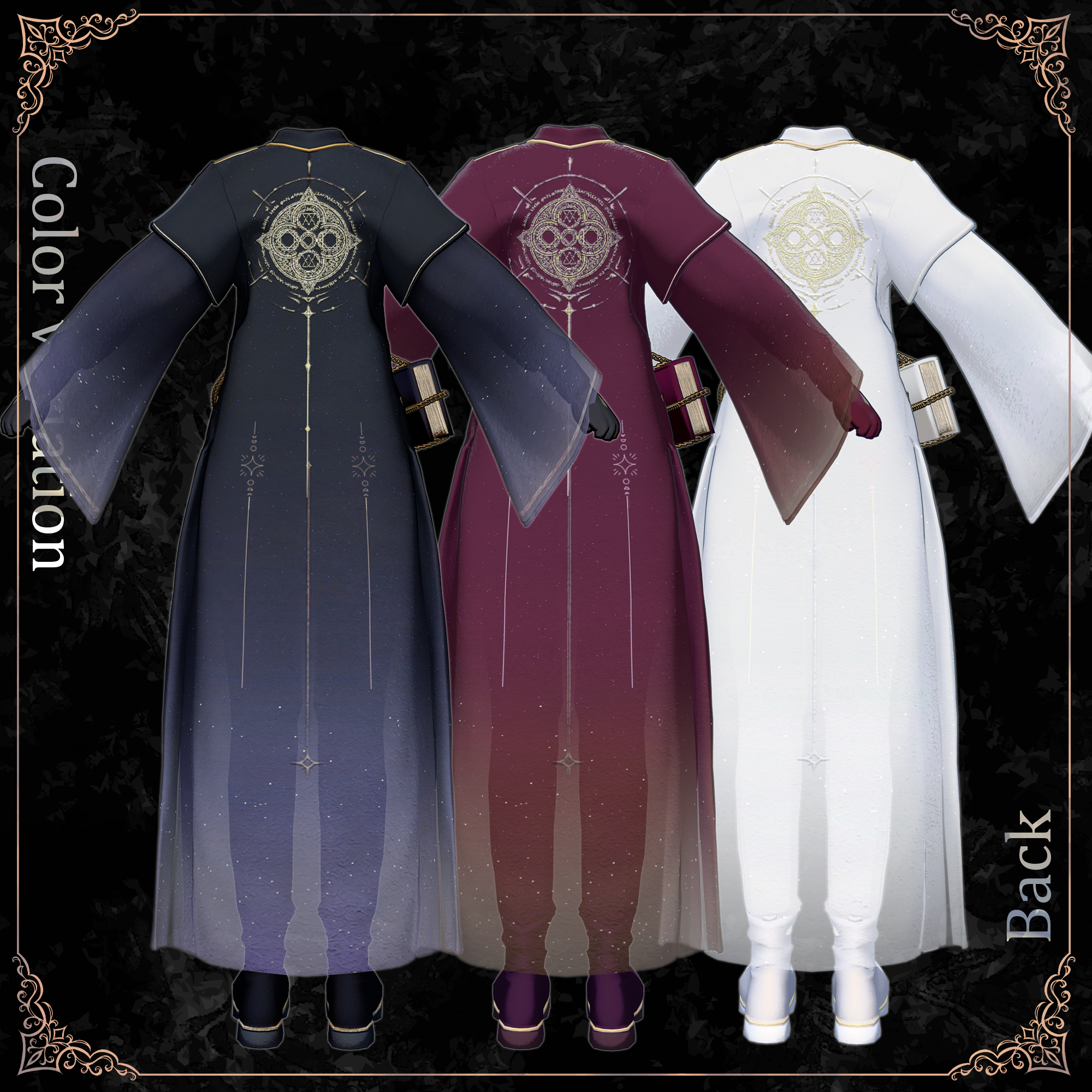
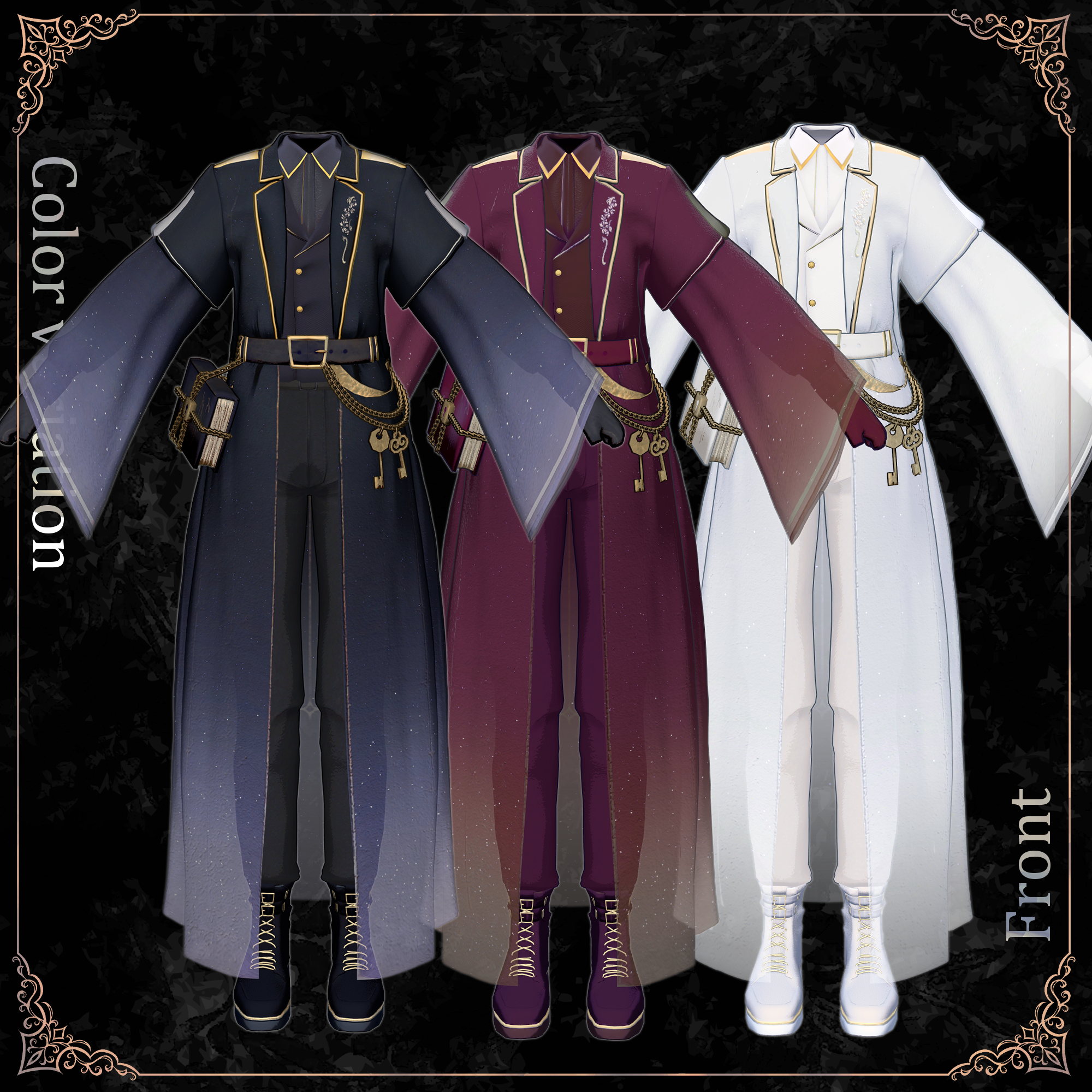
Materials: 5 outfit materials (3 color variations), 10 effect materials, 1 sword material (2 color variations)
PhysBones: 11
PhysBone Colliders: 4
Import Folder:
Assets > MetaverseCreators_CP > shin_sosogibana > Alos
◆ Supported Avatars
Female Avatars
Shinano (しなの)
Marycia (マリシア)
Lapwing
Sanatia (サナティア)
Sio (しお)
Milfy (ミルフィ)
Ramune (ラムネ)
Body-hiding shape keys are used to prevent clipping.
Shape Key Compatibility: No additional shape key compatibility is provided.
◆ Expression Menu
AlosGimmickToggle
Default: Default state / VR controls
KeyHandR: Hold key in right hand
BookHandR: Hold book in right hand
Magic: Activate magic effect
ItemON: Show items
ItemOFF: Hide items
◆ Installation
Set up the latest VRChat SDK through VCC.
Install lilToon and Modular Avatar.
Import the latest avatar package.
Import the outfit Material package.
Import the corresponding avatar-specific package.
Drag your avatar or customization prefab into the Scene Hierarchy.
Hide unwanted default clothing or set it to Editor Only.
Drag OutfitName_AvatarName.Prefab under your avatar.
Upload through the VRChat SDK.
Important
Modular Avatar's MA Shape Changer automatically applies body shape keys and hides overlapping meshes.
You can remove or customize MA Shape Changer components if needed.
For PlusHead setups, different body mesh names may prevent MA Shape Changer from working correctly. Rename meshes or adjust shape keys manually if necessary.
If body parts become unexpectedly slim, reset the corresponding shape keys to 0.
◆ Color Customization
Replace the color variation materials in:
Common > Material
◆ Gimmick Setup
After placing the outfit prefab, locate the 0.BookItem folder and place the appropriate prefab directly under your avatar:
AlosBookSet_Komano: Default color
AlosBookSet_White_Komano: White color
Note: Using a prefab with a different color may prevent the waist-mounted key and book from disappearing correctly when picked up.
Magic Activation (VR Only)
Reach toward the key at your left waist and squeeze the right-hand trigger to grab it.
Move the key toward the book's lock. The key will disappear from your hand. If unused for a few seconds, it returns to its original position.
Move your hand near the book and squeeze the trigger to pick it up.
Release the trigger to open the book.
With the book open and arms extended, place your left hand above it to summon a magic circle and giant sword.
Grab the sword handle with your right hand. Position it as desired, then release to lock it in place.
To hide the items, move your right hand near the book at your waist without pressing the trigger. Wait approximately one second.
Moving too quickly may cause synchronization issues.
Magic Activation (Expression Menu)
Use AlosGimmickToggle to control the gimmick.
Follow the sequence below to reproduce the VR interactions:
KeyHandR → BookHandR → Magic → ItemON / ItemOFF
Do not press Default midway through the sequence.
You cannot switch from menu controls to VR controls halfway through.
VR interactions are available when Default is enabled.
If the gimmick stops working, reset your avatar and try again.
Customizing Displayed Items
Objects placed under ItemONOFF inside AlosBookSet_○Avatar Name○ will be controlled by the item visibility toggle.
Customization Notes
The magic circle and position-control animations are designed specifically for the giant sword. Additional adjustments are needed to use other items.
Relevant animation files:
MagicOFF: Default state
MagicON: Magic activation
MagicOFF_Stay: Keeps items visible
You may need to adjust animations, reposition spawned items, and configure their reset positions.
Parameter: Alos/SyncState[5]
These are customization tips only. Support for custom item modifications is not provided.
◆ Terms of Use
https://drive.google.com/drive/folders/1qRMXoIxM1ZgacBPfwOigQRtXP1vCbNMn?usp=sharing
Please also follow the original avatar's Terms of Use.
◆ Development Environment
Blender: 4.2.16
CLIP STUDIO PAINT
Unity: 2022.3.22f1
VRChat SDK - Avatars: 3.10.4 (VCC)
lilToon: 2.3.4
Modular Avatar: 1.18.3
◆ Credits
Creator: Yukihana Shin (雪花しん)
https://x.com/_shin_sinsin
https://shin-store.booth.pm/
Thumbnail Artist: Zikaumu (ジカウム)
https://x.com/zikaumuvrc?s=11
For inquiries or support, please contact us via BOOTH Messages.